
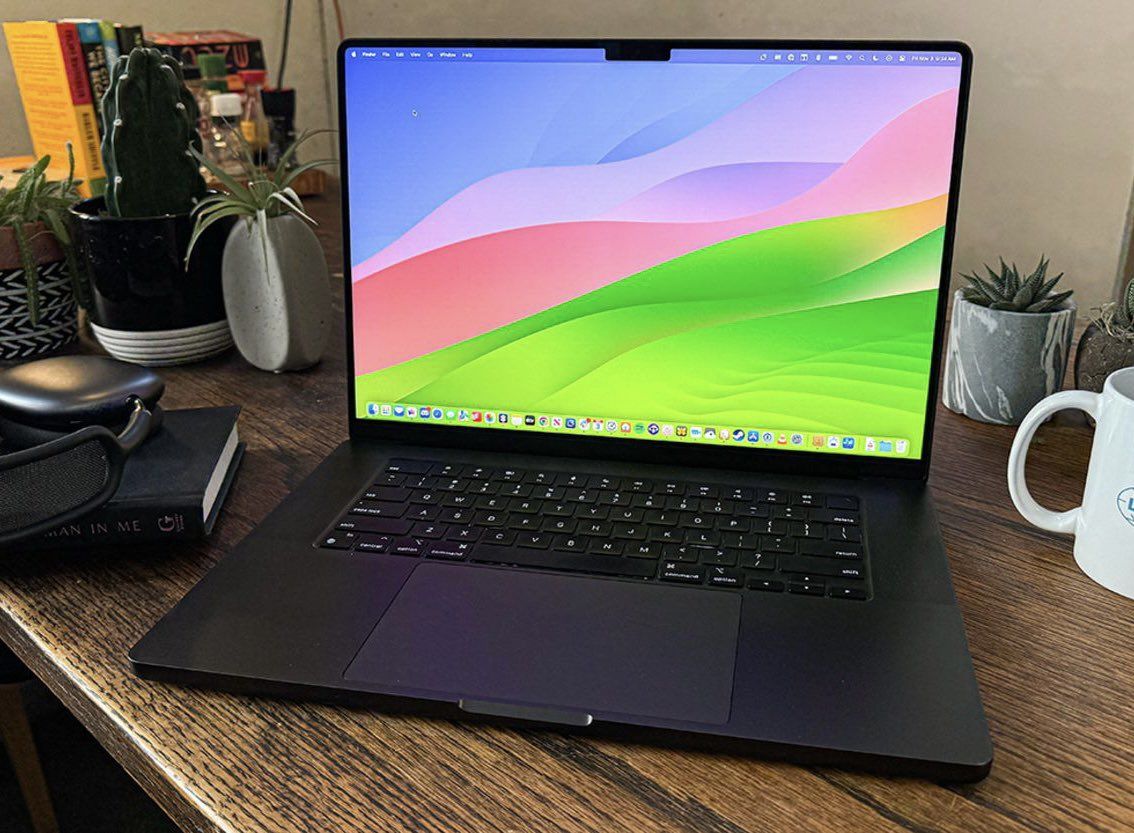
Every year, I do something that might seem extreme to some: I start fresh with a brand new MacBook Pro.
No data transfers. No migrating old files. No carrying forward the digital clutter from the previous year.
Just a clean slate and a fresh start.
I explore this further in The Biggest Firing Mistake I've Made.
Idea Behind The Ritual
This approach might sound wasteful or unnecessary, but here’s the reality: if my setup makes me even 1% more efficient, it pays for itself in the first week.
When you consider how much time we spend on our computers, that 1% compounds rapidly into hours of saved time and increased productivity.
The Essential Apps
The first thing I do after unboxing is download my core productivity toolkit.
These aren’t random apps, these are tools I’ve tested and refined over years of experimentation:
- Paste App: In my opinion, this is the best copy and paste tool in the entire Apple ecosystem. It transforms the clipboard from a single-use tool into a powerful productivity multiplier.
- BetterSnapTool: This app enables split-screen or quad-box window management, making multitasking seamless and intuitive.
- Chrome: My browser of choice for its speed, extensions, and cross-platform syncing capabilities.
- Superhuman: Email is still the backbone of business communication, and Superhuman makes managing it actually enjoyable.
- CloudApp: Simply put, the best screenshotting app available. Screenshots and screen recordings are essential for modern communication.
- Google Drive: For cloud storage and collaboration, this remains unbeatable.
- Notion: I stand by this: Notion is the best productivity app of all time. It’s my second brain, project manager, and knowledge base all in one.
System Settings That Make a Difference
After the apps are installed, I focus on the system settings that most people overlook but make a massive difference in daily use:
First, I change my trackpad sensitivity settings to maximum. This might feel too fast for some, but once you adjust, the speed boost in navigation is incredible. Every cursor movement is more efficient.
Next, I log into Motion, my go-to calendar and scheduling app. Time management is everything, and Motion helps me visualize and optimize how I spend every hour.
Then comes the cleanup: I remove all the garbage Mac apps from my menu bar and turn on minimization. A cluttered menu bar is a cluttered mind.
These systems have served me well as CEO. I share the broader lessons in My CEO Story.
I want to see only what matters.
Finally, I change my wallpaper to make this MacBook truly mine. It might seem superficial, but personalizing your workspace creates a psychological connection that enhances focus and ownership.
Conclusion
While I’ve shared my specific app choices and settings, the real lesson here isn’t about copying my exact setup. It’s about being intentional with your tools and workspace.
Ask yourself: What apps do I actually use every day? What settings frustrate me that I could change? What would my ideal digital workspace look like?
Then build it deliberately, rather than letting it accumulate organically over time.
Your productivity system should serve you, not the other way around. A fresh start, whether annually or just when needed, is one of the best ways to ensure that remains true.